
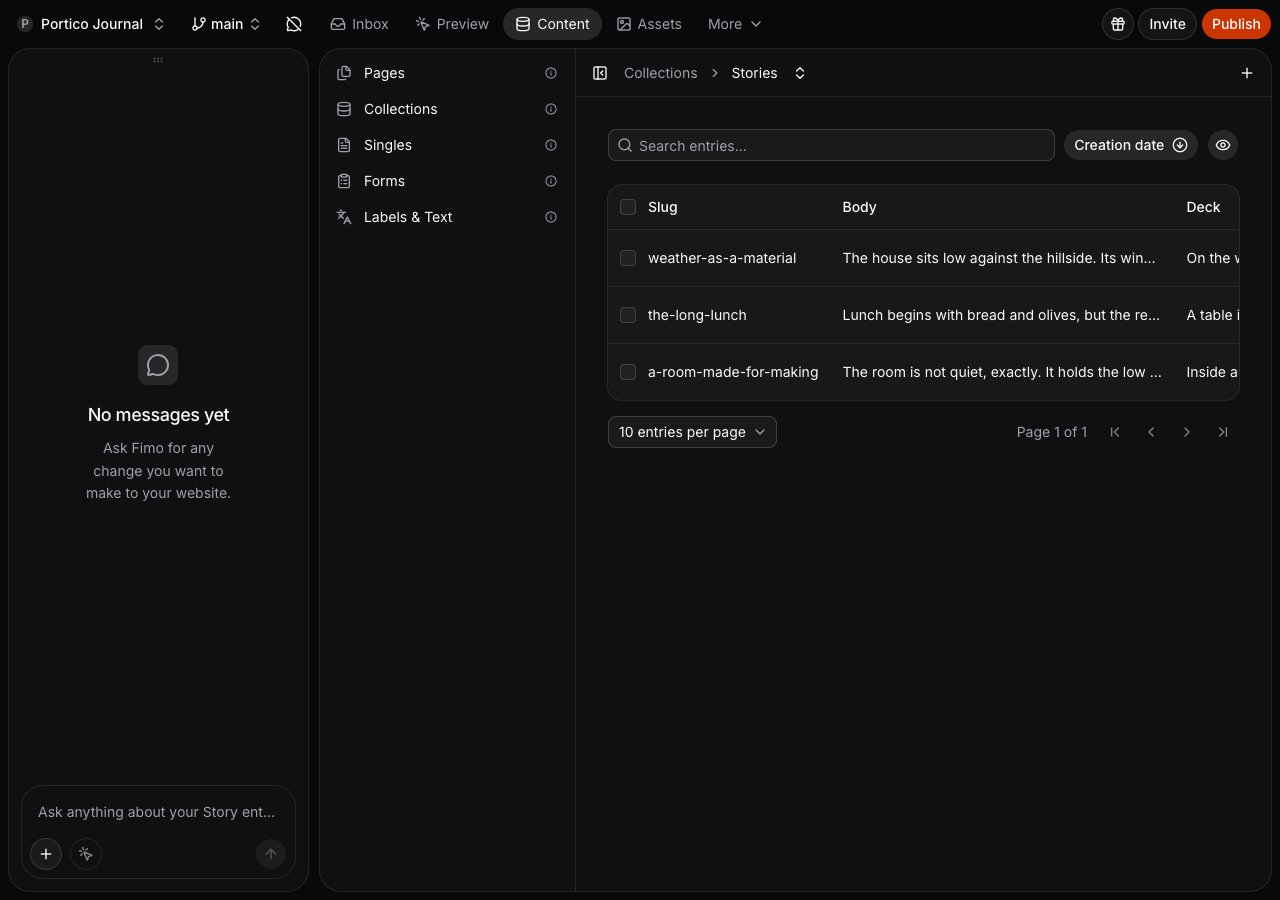
Find the right place
Edit a Collection entry
1
Open a Collection
Choose Content → Collections, then select the content type you need.
2
Choose or create an entry
Select an existing row. To add one, choose New entry or use Create entry in an empty Collection.
3
Update the fields
Edit the text, dates, images, and other fields. Studio saves valid changes automatically. Watch the status at the
top for Saving or Saved.
Review form submissions
Choose Content → Forms, then open a form to see everything your site has received. Select a row to read one response in the side panel. Use Export CSV to take the whole list with you. To remove a response, open it and choose the trash icon in the panel header, then confirm. Deletion is permanent, applies to that one response, and cannot be undone.Edit a Single
Choose Content → Singles, then open the item you need. A Single opens directly because it always contains one set of content. It has no create or delete action.Work in another language
Use the language selector beside a localized Collection or Single. A field with a locked globe holds one shared value for every language. Changing that field in one language changes it everywhere. For a saved localized Collection entry, the language selector in the open entry changes that entry only. Studio keeps the entry open and shows its content in the language you chose, while the Collection list keeps its own language and its rows. If the entry has no translation in that language yet, Studio leaves it open and tells you nothing was found. Singles and new entries continue to use the route language because they do not have a saved entry variant to keep open. If a Collection shows an amber missing-translation warning, open it and choose Create missing translations. Studio prepares a request in AI chat. Review the request before sending it.Ask AI chat
You can ask AI chat to create a content type, add entries, translate content, or connect content to a page. Type@ to reference a specific item.
What’s next
Media library
Upload and reuse images and files.
Visual editing
Edit visible content from the preview.
Publish
Send approved changes live.