


Claude Code is very good at building a website. You describe what you want, it writes the pages, and an afternoon later you have a site that runs. Then marketing asks for a new headline, a fresh customer logo and a price change, and every one of those requests goes back to whoever runs Claude Code.
This guide shows the whole path, in order: build the site with Claude Code, connect it to Fimo, and hand it to a marketer who edits it on their own. We make Fimo, so we’ll say so upfront. It takes two prompts in Claude Code and a few clicks in Fimo. You don’t need to type commands.
What you need before you start
- Claude Code, installed and signed in. Any plan that runs Claude Code works. The same steps work with Cursor or Codex: paste the same prompts.
- A free Fimo account. You’ll use it in step 2. The Free plan needs no card.
- A supported framework. Fimo works with Next.js, Astro, SvelteKit, React Router, TanStack and Vite. If you’re starting from scratch, ask Claude Code for Next.js: it’s Fimo’s default.
- The email address of the marketer you’ll invite in step 3.
Who does what
Swipe the table to see every column.
Step 1: Build the site with Claude Code
- Create an empty folder and open Claude Code in it.
- Paste the prompt below, with your own company, pages and audience.
- Look at the result, and tell Claude Code what to change until you like it.
Build a marketing website for [your company] with Next.js
(App Router). Pages: home, pricing, about, contact.
Audience: [who it's for].
Keep all page text in one place per page, so it is easy to move
into a CMS later.
The last line isn’t required, but text grouped per page is easier to move into Fimo in step 2.
Step 2: Bring the site into Fimo
Fimo gives you the prompt. You copy it into Claude Code, and Claude Code does the rest.
- Log in to Fimo and click Create site.
- Click Build with ChatGPT, Claude or a coding agent.
- Click Copy prompt. Or click the Claude Code icon next to “Open in a coding agent” to open the prompt there in one click.
- Paste the prompt into Claude Code, in your site’s folder.
- When Claude Code asks what to start from, answer:
Existing code: the site in this folder.
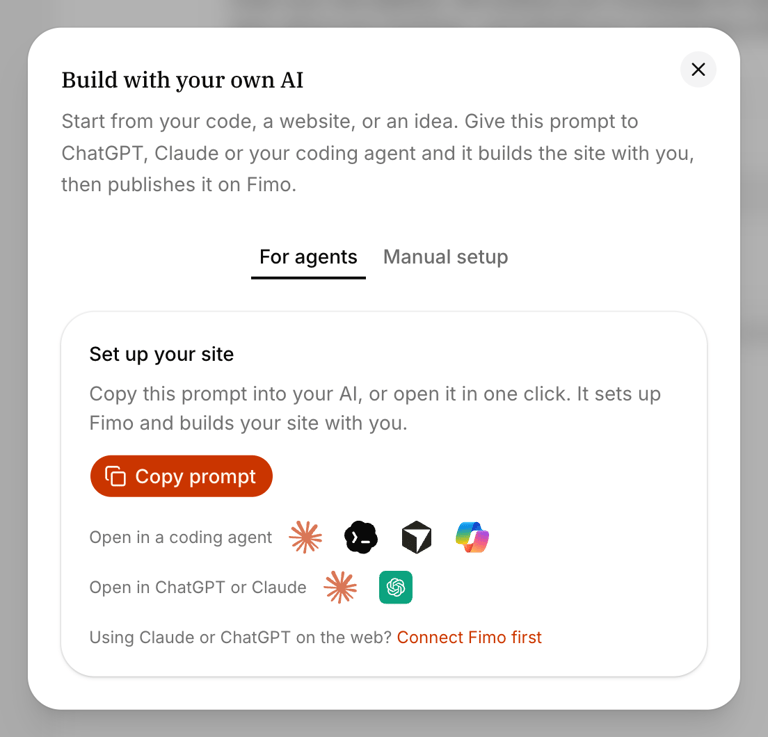
Pierre Burgy, Fimo’s co-founder and CEO, shows this step in the Getting started video, from 1:01:
Claude Code sets up Fimo, brings your site in and creates a first preview: a private, hosted copy of the site where your marketer will edit. Nothing is public yet. Claude Code won’t publish the site on its own. Publishing always waits for a person to ask for it.
In our test on a small site, this took about seven minutes.
Note where Claude Code says the site now lives. In our test it moved the code into a new my-site folder inside the original one, and that is the folder to open in Claude Code from now on.
When it’s done, Claude Code gives you a link. Open it: you see your site inside Fimo Studio, with the Invite and Publish buttons at the top right.
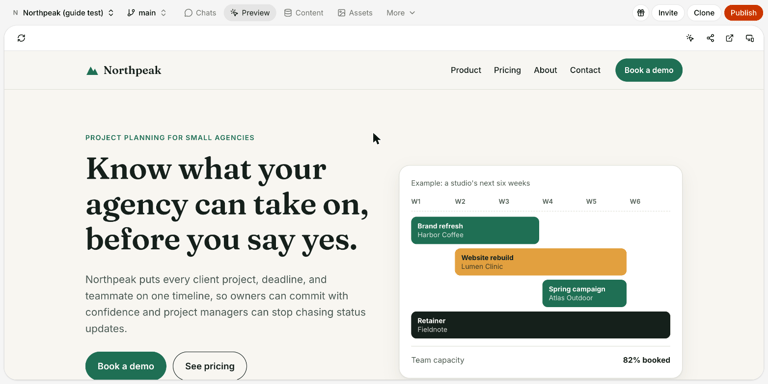
Click the pointer icon, then a headline, and check that its text appears in the sidebar. If it does, the page is ready to hand over. If Studio says “Nothing to edit” instead, see the common problems at the end of this guide.
Haven’t built the site yet? Skip step 1. Paste the same prompt into Claude Code in an empty folder, and answer A new idea when it asks what to start from. Claude Code builds the site in Fimo with you.
Is the site already online? There is another way in, which starts from the site’s public address instead of its code:
- In Fimo, click Create site and enter your website address.
- Fimo scans the homepage for search engines and AI, then rebuilds it in Fimo with the problems it found fixed. Its text is editable straight away.
- Bring in the other pages: in the Import the rest of your site window, click Copy prompt and paste it into Claude Code. It moves the other pages with their content and media, keeps your page addresses and asks you before anything is published.
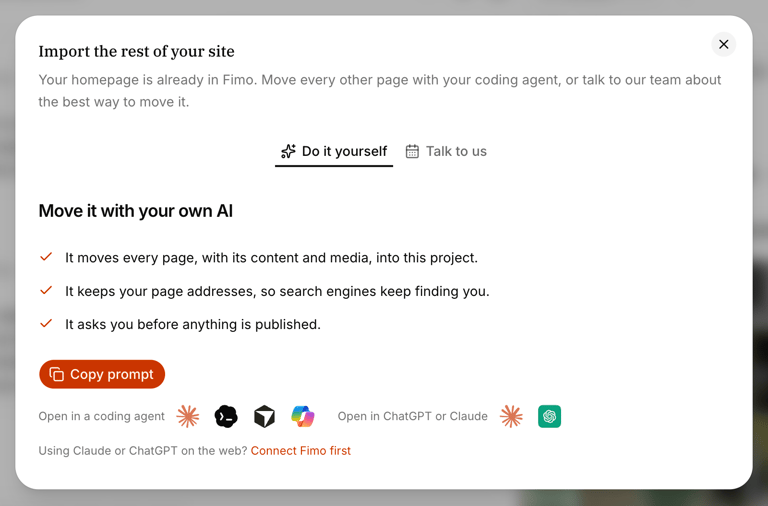
This path rebuilds the site in Fimo. It doesn’t link the code Claude Code wrote, and website import is still in alpha. Follow the steps above if you want Claude Code to keep working on the code it wrote.
Step 3: Invite the marketer
- Open the site in Fimo Studio.
- Click Invite in the header.
- Enter the marketer’s email address.
- Choose Can edit.
- Click Invite.
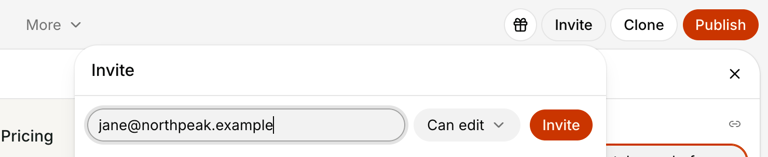
The invitation waits in the sharing panel until they accept. Once they do, the site appears in their Sites list with a Shared badge.
There are three access levels. Can view opens the site without changing anything. Can edit lets someone edit content and images, and use the AI chat to change code. Full access adds settings, sharing and publishing. Give Full access to the marketer if they should publish on their own.
Step 4: The marketer edits the site
This is the part your marketer does, with no code and no terminal.
- Open the site in Fimo Studio, on a computer. Edit mode works on desktop only.
- Click the pointer icon in the preview header, or press Option+E on a Mac (Alt+E on Windows).
- Click the text or image to change. An orange outline marks it and its fields open in the right sidebar.
- Type the new text or pick a new image from the media library.
- Check the result in the preview. Changes save automatically and show up without reloading the page.
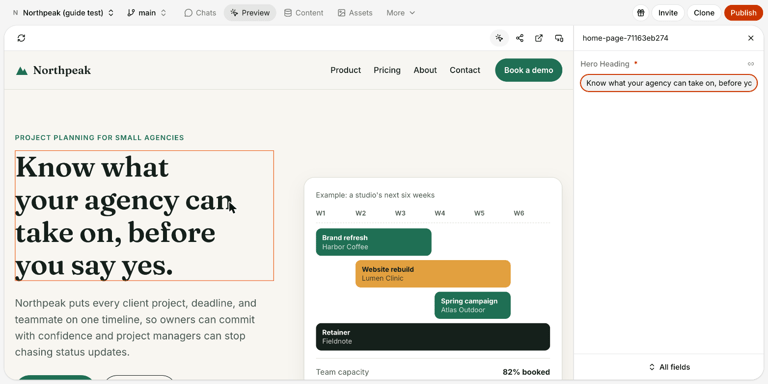
To see every field of the page, or to add, duplicate, remove or reorder items in a list (customer logos, pricing plans, features), click All fields at the bottom of the sidebar.
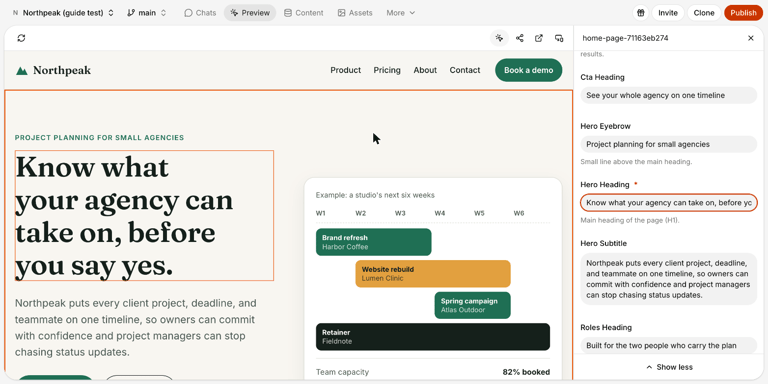
This is Fimo’s visual editor. What a marketer doesn’t change here: colors, spacing, fonts and layout. For a design change, they can ask the AI chat in Fimo, or the request goes back to Claude Code. That split is on purpose: the design stays consistent while the words change as often as the team needs.
Step 5: Publish the changes
- Check the pages in the preview: text, links, images, mobile layout.
- Click Publish at the top right of the site header.
- Click Publish in the panel and wait until the status finishes.
- Open the live address and check your main pages once more.
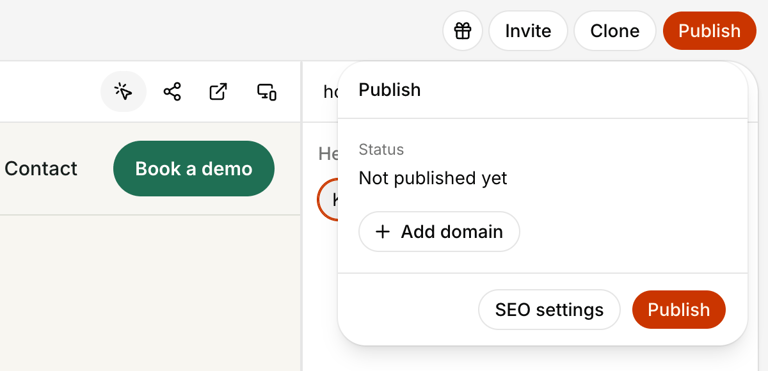
Saved changes don’t update the public site until someone publishes. If a publish fails, the live site keeps its previous version, and every published version can be restored from the version history.
Step 6: Keep building with Claude Code
Connecting Fimo doesn’t change how you work with Claude Code. It keeps writing code in the folder linked to Fimo (see step 2): new pages, new components, a redesign. Each time it adds a page, ask it to make that page’s content editable in Fimo too.
Fimo also adds agents that look after the site once it’s live, for SEO, AI search visibility and broken links. You choose whether they publish on their own or wait for your approval on each change. Read more on the Fimo agents page.
Prefer the terminal?
Claude Code runs Fimo commands behind the scenes. If you’re comfortable in a terminal, you can run them yourself, in the site’s folder:
npx fimo@latest skills install --agents=claude-codeinstalls the Fimo skills for Claude Code.npx fimo@latest linkconnects the folder to a Fimo site.npx fimo@latest deploy -m "feat: editable content"opens a preview.npx fimo@latest invite --email "jane@yourcompany.com" --role editinvites a teammate.
The full list is in the Fimo docs.
Claude Code with Fimo vs a website builder
Website builders such as Webflow, Framer or Wix let you build the site yourself on their canvas, with AI features to help. That’s a good fit if you want one tool and are happy to build within its limits. Claude Code writes real code in a framework you choose, which gives you more freedom, but on its own it leaves your team with no way to edit. Fimo fills that gap: Claude Code keeps writing the code, and the content becomes editable for people who don’t code. For a tool-by-tool view, see how Fimo compares.
Swipe the table to see every column.
Common problems
Studio says “Nothing to edit”. The text of that page is still written in the code, where a marketer can’t change it. Paste this into Claude Code:
Load the fimo-code skill. Move the visible text and images of this
page, including the header and footer, into Fimo content, so my
team can edit them in Fimo Studio.
Keep the design, the URLs and the rest of the site unchanged.
Then deploy a new preview. Do not publish.- Claude Code is stuck on the sign-in. It can open the sign-in page but can’t finish it. Complete it in your browser, then tell Claude Code to continue.
- The marketer can’t find edit mode. It only works on a computer, not on a phone. The shortcut is Option+E on a Mac and Alt+E on Windows.
- A change doesn’t show on the live site. It’s saved in the preview but not published yet. Follow step 5.
Common questions
Can I edit a website built with Claude Code without coding?
Yes. Fimo gives you a prompt to paste into Claude Code. It brings the site into Fimo and moves the page text there. After that, anyone you invite can click the text on the page in Fimo Studio, change it and publish, without opening the code.
Do I have to rebuild my Claude Code site to use Fimo?
No. Fimo links to the site as it is and keeps your framework. The only change is that the text moves from the code into Fimo, and Claude Code does that for you, page by page.
Which frameworks work with Fimo?
Next.js, Astro, SvelteKit, React Router, TanStack and Vite. If Claude Code hasn’t built the site yet, Next.js is the simplest choice because it’s Fimo’s default.
Can Claude Code keep working on the site after I connect Fimo?
Yes. Claude Code keeps writing code in the folder linked to Fimo. Your team edits the content in Fimo Studio while Claude Code works on pages and components.
Can a marketer break the design?
No. In Fimo Studio, a marketer edits content: text, links, images and lists. Colors, spacing, fonts and layout stay in the code. Design changes go through the AI chat in Fimo or through Claude Code.
Can an agency hand a Claude Code site to a client?
Yes. The agency builds the site with Claude Code and connects it to Fimo, then invites the client from Fimo Studio. Can edit lets the client change content, and Full access also lets them publish. The agency keeps working on the code with Claude Code.
Where is the code stored?
Fimo hosts the code in a private Git repository. You can clone it to your computer at any time, from the Clone button in Fimo Studio. GitHub sync is coming soon.
How much does it cost?
Fimo has a Free plan with no card. Your own domain starts with the Starter plan at $99 per month. Claude Code is billed by Anthropic.