> ## Documentation Index
> Fetch the complete documentation index at: https://docs.fimo.ai/docs/llms.txt
> Use this file to discover all available pages before exploring further.
# Secrets
> Store project credentials without exposing their values.
Open **Project settings**, then choose **Secrets**. Only project members with **Full Access** can add, replace, or remove secrets.
The page shows all readable environments together. Each row is one key and Environment pair, with the Environment shown as a badge, so you can compare Production, Preview, and custom Environments without switching a page-level filter. Fimo hides each value after you save it.
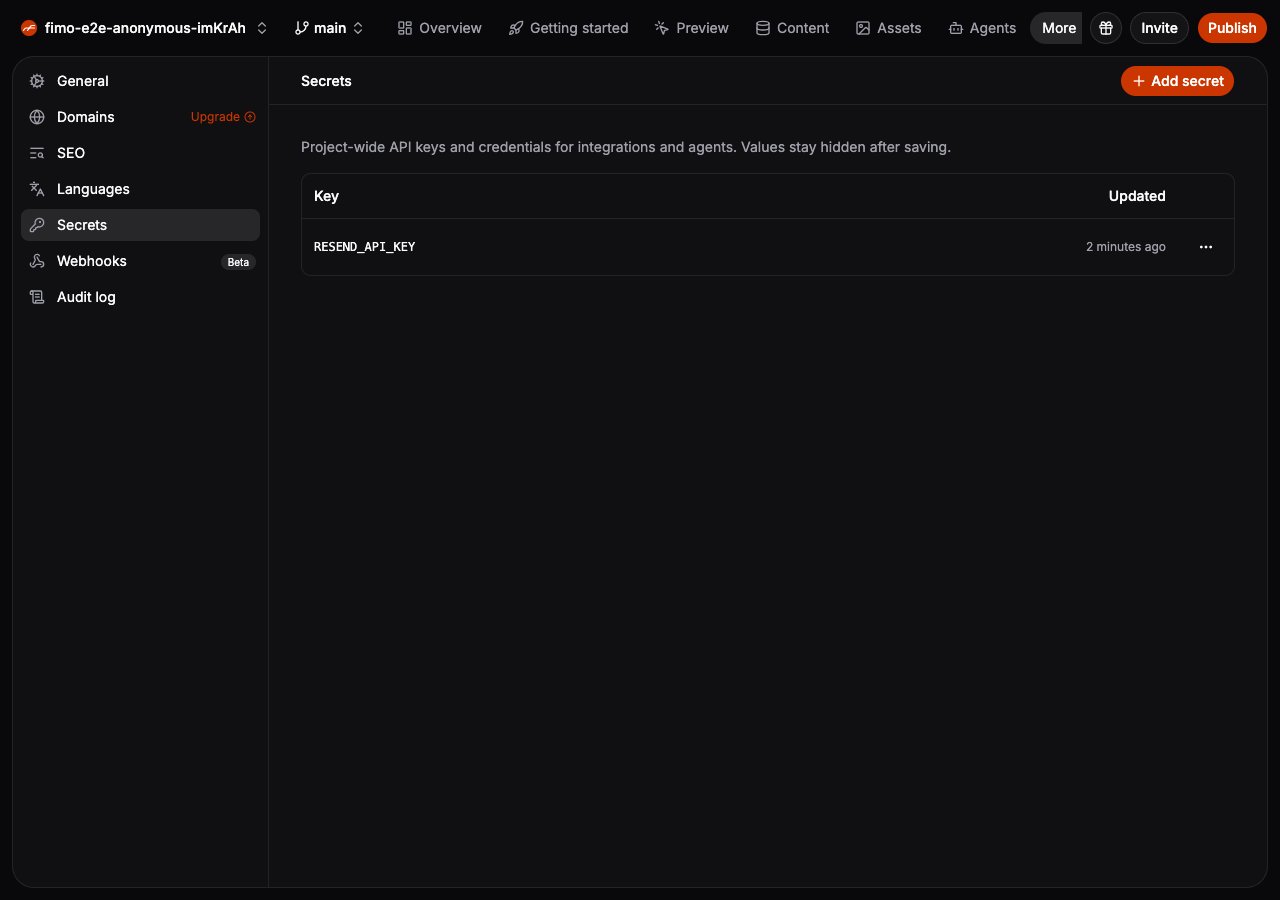
## Add a secret
Choose **Add secret**, select the Environment it applies to, enter an uppercase key such as `RESEND_API_KEY`, then enter its value. Add the same key again when another Environment needs its own value. You will not be able to view the value again after saving it.
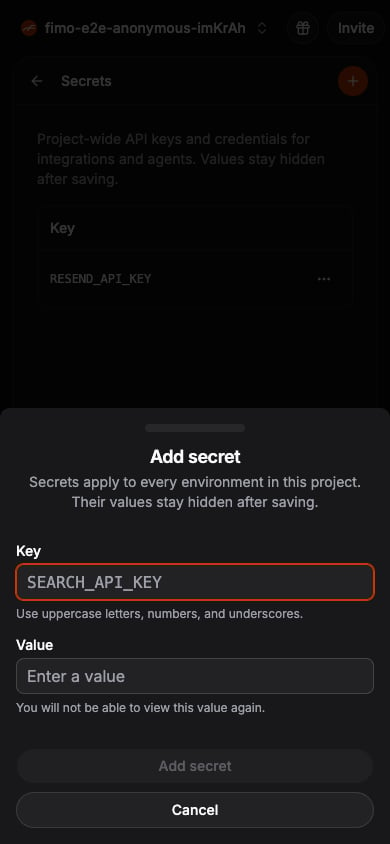
Use the row menu to replace a secret value or delete the secret. Replacing a value keeps the same key, so integrations can continue referring to it.
Secret keys cannot start with `PUBLIC_`, `VITE_`, or `NEXT_PUBLIC_`. Those prefixes can expose values to browser code.
## Use secrets in integrations
When configuring a webhook header, insert an existing secret into a value such as `Bearer RESEND_API_KEY`. The secret stays hidden in Studio and in delivery history.
Developers and coding agents can manage the same secrets with [`fimo secrets`](/docs/reference/cli). Project variables remain available through `fimo vars`.
Send project events to services that use your secrets.
Manage project secrets from a terminal or coding agent.